Are you experiencing issues with Outlook's "Quick Print" function sending the email/document in question to the wrong location, like to the notepad application or another printer that is not your primary?
Worry not, as this should be remediable with a simple change or two. Follow these steps to check if your printer and print settings are properly configured so that Outlook's "Quick Print" function works as intended.
If these steps don't resolve your issue, reach out to your IT Technician for more assistance.
There are two things to check: Your Outlook Print settings, and your default printer settings in Windows.
1. Checking Outlook Print settings:
- Classic Outlook users:
- With Outlook open, make sure you're in your inbox and not your Calendar or anywhere else in Outlook.
- Go to File > Print > Print Options (right underneath the drop-down menu to select what printer to print to).
- Within Print Options, in the bottom-right check the checkbox to enable the print function 'to print to the default printer only." Once enabled, click on 'Preview' at the bottom to make sure your changes are saved.
- New Outlook users: New Outlook does not have the Quick Print feature.
- With Outlook open, click on any email in your inbox. With the 'Home' tab selected in the top-left, select the 'Print' button that is towards the right side of the ribbon.
- When the Print window shows up, make sure you see the specific printer you're trying to reach in the 'Printer' drop-down menu (if the printer you're looking for is not selected by default in this window, skip to the next step of 'Checking which printer is set as your default').
This Print window shows you a short list of options along the left-hand pane. If you're looking for more settings, you can scroll down and click on 'More Settings' in that window.
- If you're not able to find what you're looking for in the Print options, click on the bottom link of "Print using system dialogue... (Ctrl+Shift+P)." A "Microsoft Edge WebView2 - Print" window will open. Click on "More settings" to adjust detailed printing preferences.
2. Checking which printer is set as your default on your computer:
- Using the bottom search bar along the taskbar, search for 'print' and click on "Printers and Scanners."
- Within the "Printers and Scanners" settings page click on any printer listing. Within the printer's settings, scroll down and click on 'More Devices and Printer Settings' (see below).
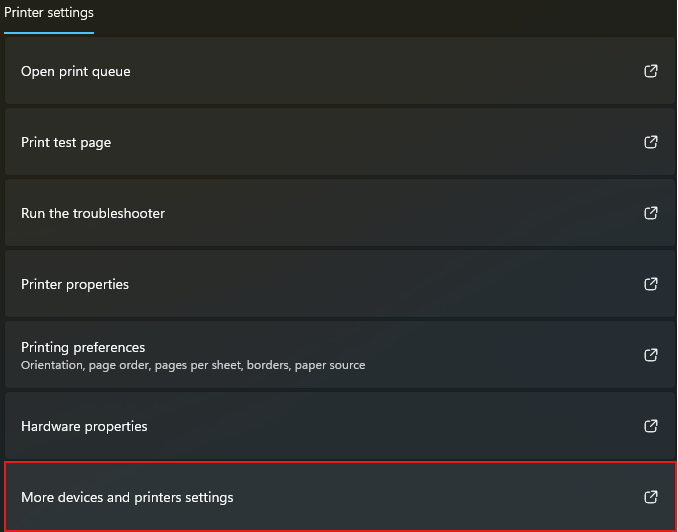
- On the "Devices and Printers" window, select the printer that we want to set as our default (screenshot example does this with "Xerox West" printer), then right-click the printer icon and click on 'Set as default printer' (see below).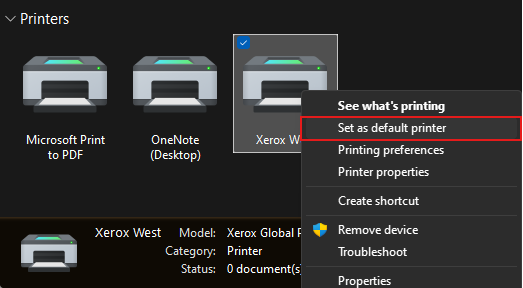
- - - - - - - - - - - - - - - - - - - - - - - - - - - - - - - - - - - - - - - - - - - - - - - - - - - - - - - - - - - - - - - - - - - - - - - - - - - - - - - - - - - - - - - - - -
At this point you should be set to try utilizing the Quick Print function to see if it works as intended.
If you are still experiencing problems, please reach out to your IT Department for assistance and mention anything you've discovered about the issue.
Was this article helpful?
That’s Great!
Thank you for your feedback
Sorry! We couldn't be helpful
Thank you for your feedback
Feedback sent
We appreciate your effort and will try to fix the article