Are you missing notifications about Teams Meetings in Outlook that previously would show up without issue?
Check if your Teams COM Add-in for Outlook is/was disabled by checking the following steps.
If these steps do not resolve your issue, reach out to your IT Technician for assistance.
For Classic Outlook users:
Checking enabled COM add-ins:
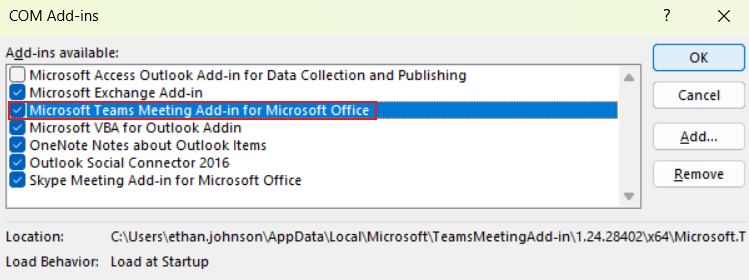
- With Outlook open, type 'com' in the search bar. Of the shown results, click on 'COM Add-ins' towards the bottom.
- On the COM Add-ins window, ensure that 'Microsoft Teams Meeting Add-in for Microsoft Office' is enabled. If it's not, go ahead and click the checkbox and then click OK (see below).
Checking disabled COM add-ins:
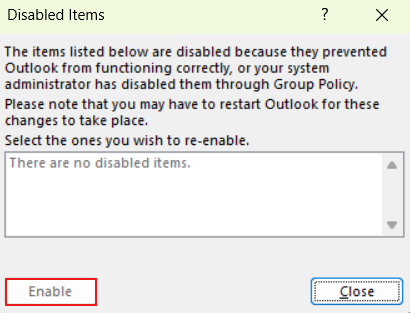
- After ensuring that your Teams Add-in is enabled, type in the top search bar within Outlook "disabled" and click on Disabled Items.
- If you notice that your Microsoft Teams add-in is included in this list, go ahead and select it and click 'enable' (see below).
For New Outlook users:
As stated from Microsoft, "the 'new Outlook' (web version) has a native integration with Microsoft Teams, allowing you to schedule Teams meetings directly within the Outlook calendar without needing a separate add-in. This functionality is built-in, so you can create a Teams meeting by selecting the "Teams Meeting" option when creating a new event."
"COM add-ins aren't supported in the new Outlook for Windows, but continue to work in Classic Outlook in Windows. COM Add-ins can manipulate Outlook in many ways that often lead to instability and crashes in Outlook. [...] Users are encouraged to migrate their existing COM add-ins to web add-ins to work in the new Outlook environment."
To add new add-ins or view current add-ins:
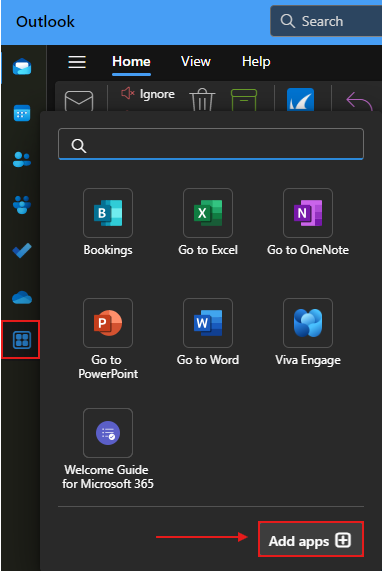
- With Outlook open, click on the 2x2 box icon along the left-hand pane, and then click on 'Add apps' (see below).
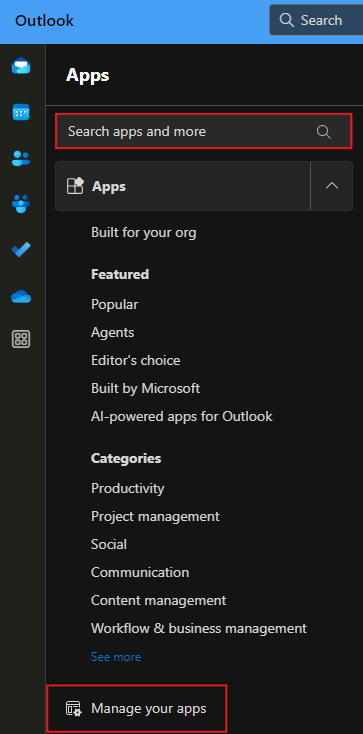
- When you're in the Apps window of the new Outlook, you can either search for add-ins to add through the search bar at the top, or you can manage add-ins in use by using the button at the bottom "Manage your apps."
Was this article helpful?
That’s Great!
Thank you for your feedback
Sorry! We couldn't be helpful
Thank you for your feedback
Feedback sent
We appreciate your effort and will try to fix the article