In order to install the BlueBeam software & register your BlueBeam account, follow these outlined steps:
To register your account:
- First, make sure you've put in a ticket requesting a BlueBeam license so that the IT department can get that setup.
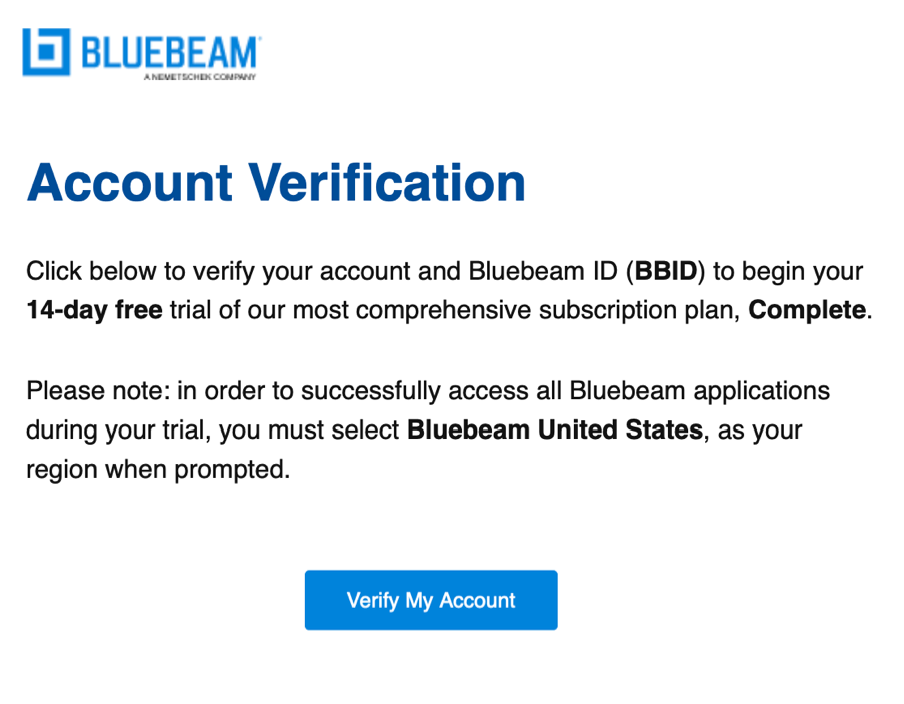
- Once you've heard your BB license is assigned, check your inbox for an email from BlueBeam. You should see an email similar to what is shown below asking you to "register your BlueBeam ID."
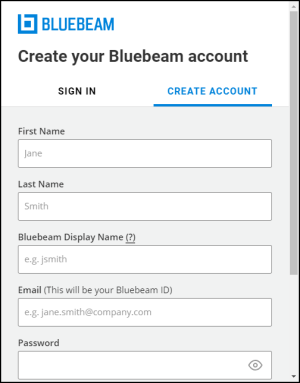
When you click the link provided in the email, the following form will appear for you to fill out. Your email should be auto-filled in the form, and you'll be able to set whatever password you'd like to have set for your BlueBeam account. The display name naming convention will be kept as recommended (first initial, last name).
Once you've registered your account and verified it with the subsequent email that BlueBeam sends you, then you've done everything you need to! You should be good to log in with these credentials as long as BlueBeam is successfully installed.
To install BlueBeam Revu:
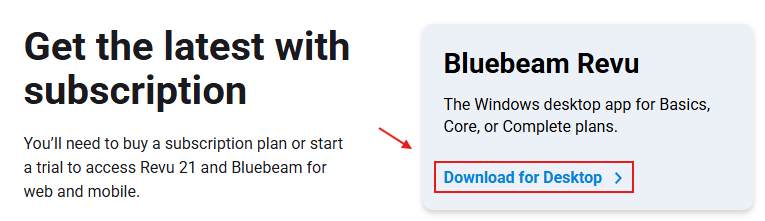
1. You will need to download the installer from their website at BlueBeam.com/download. Click on 'Download for Desktop' underneath the 'BlueBeam Revu' banner (see below).
2. Once the installer has been successfully downloaded, contact your IT technician so they can start the installer for you. An administrator password will be required to be entered to commence the installation.
At this point, when the installation is finished you will be good to log into BlueBeam with your GW email & previously set password. Once logged in, you should be have access to all of the tools.
If you have any questions, concerns, or encounter any issues during this process, please reach out to your IT Department for assistance.
Was this article helpful?
That’s Great!
Thank you for your feedback
Sorry! We couldn't be helpful
Thank you for your feedback
Feedback sent
We appreciate your effort and will try to fix the article