Feel free to use the following directions to get Adobe Pro installed on your system.
If you have any questions, feel free to reach out to your IT department.
1: Request an Adobe Pro license from your IT department
After this is requested through an IT ticket submitted to ithelp@affordable-solar.com or ithelp@gridworks.com, they will let you know when this license has been assigned to you and when you're given the green light to proceed with the next steps.
Once you hear back from IT, you'll want to keep an eye on your email for a message from Adobe pertaining to your new Adobe Pro license. This email will contain instructions to register an account with them using your Gridworks email if you still need to set one up.
Once you have an Adobe account created with your Gridworks account, you can proceed to step 2.
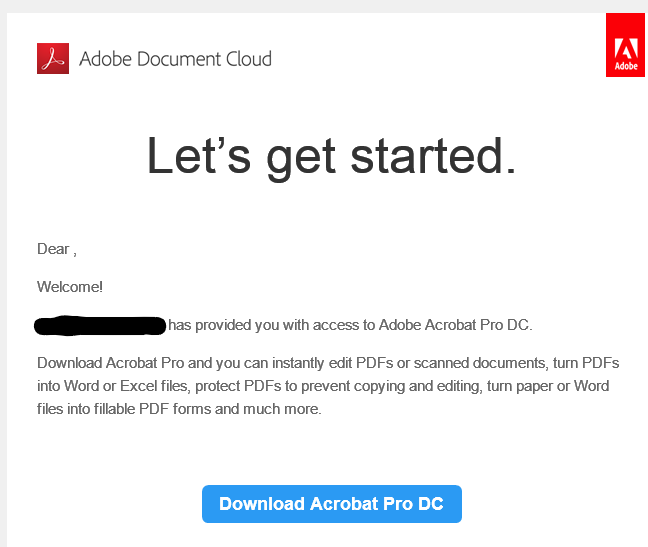
2: Download and Install Adobe Pro from the Adobe website.
Windows Users:
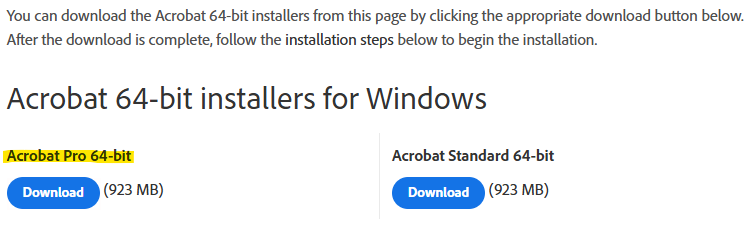
You can download the installer for Adobe Pro at their website here. Click on the "Download" button next to where it says "Acrobat Pro 64-bit."
Mac Users:
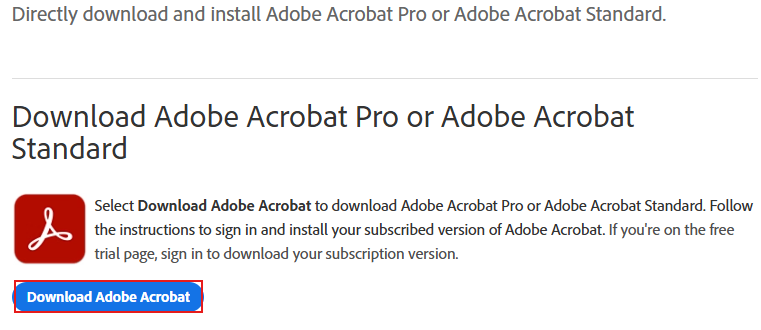
Open your preferred Web Browser and visit the following link to reach the Adobe Download Page (Adobe.com). You can find simple instructions on this page for downloading and installing Adobe Acrobat with the Creative Cloud. There are also links to more in-depth help articles from Adobe.
Click the Download Adobe Acrobat button on the front page.
You will be able to download the installer without issue, but will need an administrator password to be entered to start said installer. Let your IT Technician know when you've reached this point, and they will get this started for you.
3: Let the Acrobat installer take care of the rest, and then log in using your registered credentials when prompted.
If you are unable to login to your Adobe account after the installation is complete, or you experience any other errors that prevent you from being able to utilize the features within Adobe Pro, please contact your IT department using the addresses mentioned at the top of this article.
Was this article helpful?
That’s Great!
Thank you for your feedback
Sorry! We couldn't be helpful
Thank you for your feedback
Feedback sent
We appreciate your effort and will try to fix the article