If your monitor(s) are not displaying your connected computer's desktop, there are a couple things that need to be checked to ensure everything is set up as it should be.
If these steps do not resolve your issue, or you encounter any issues while following these directions, please contact your IT Department for more assistance.
1. First, confirm the model of docking station you're using.
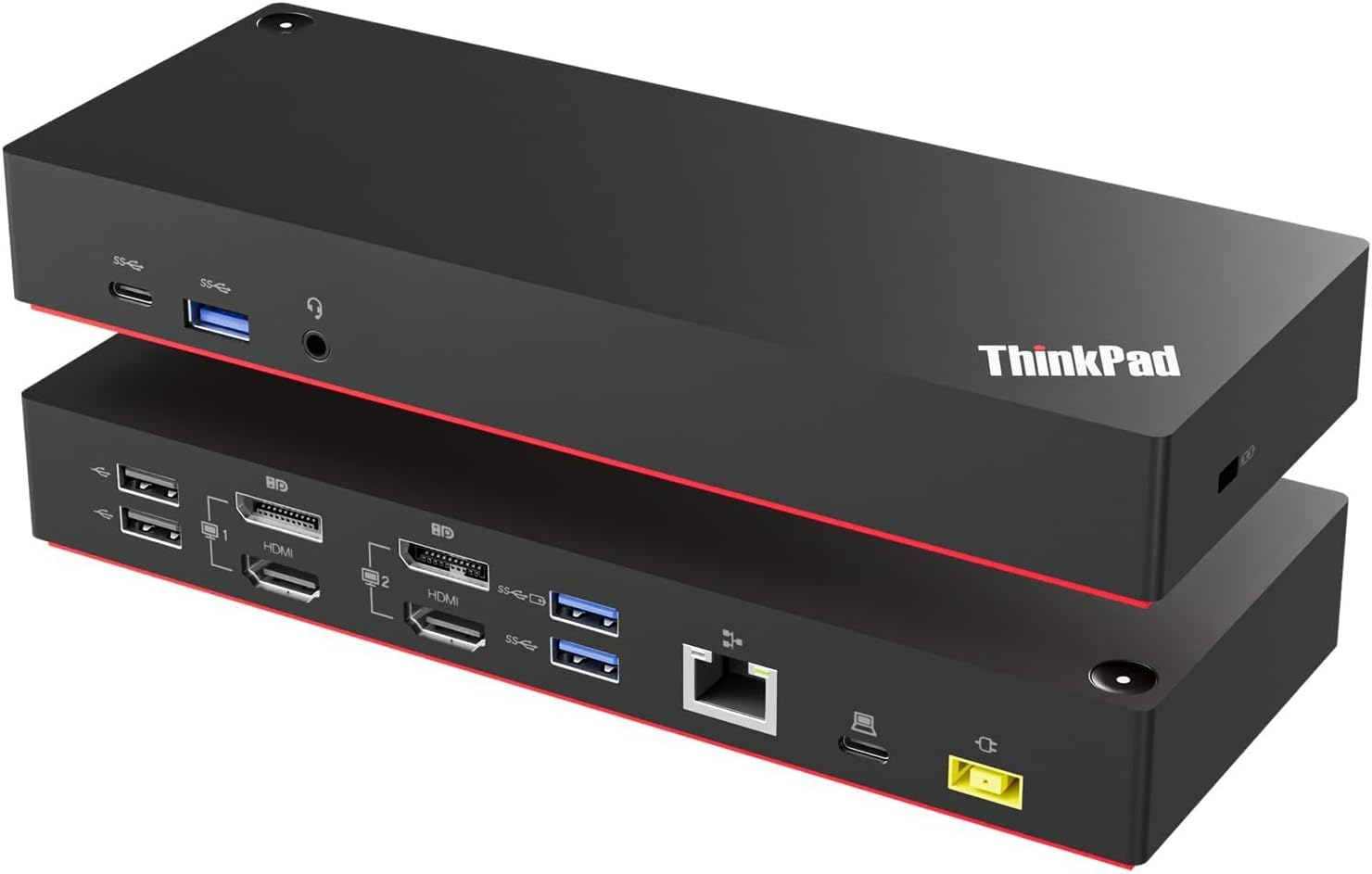
Lenovo ThinkPad USB-C Hybrid docking stations look like this (note the single, yellow power port):
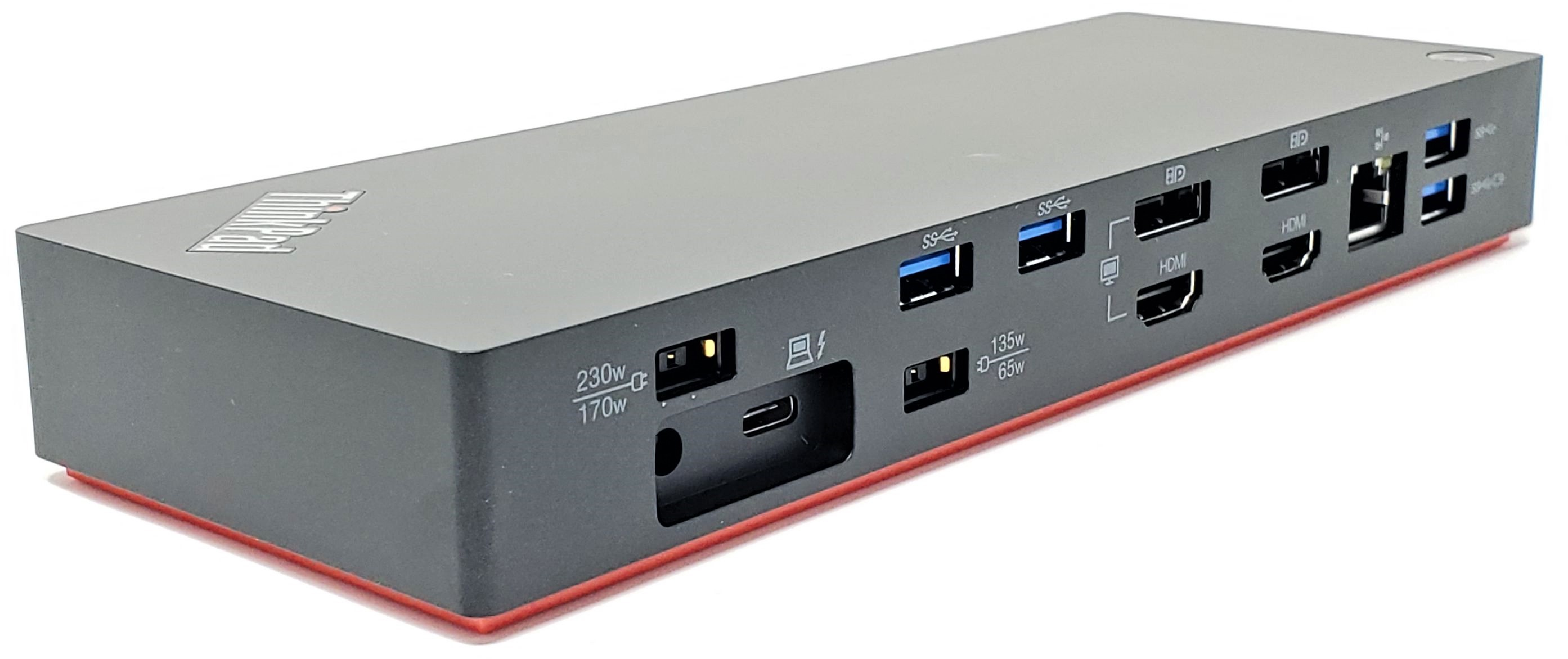
Lenovo ThinkPad Thunderbolt 3 (Gen 2) docking stations look like what's shown below (there are two power ports on the opposite end of the dock's rear side):
Anker 13-in-1 docking stations look like the below photo: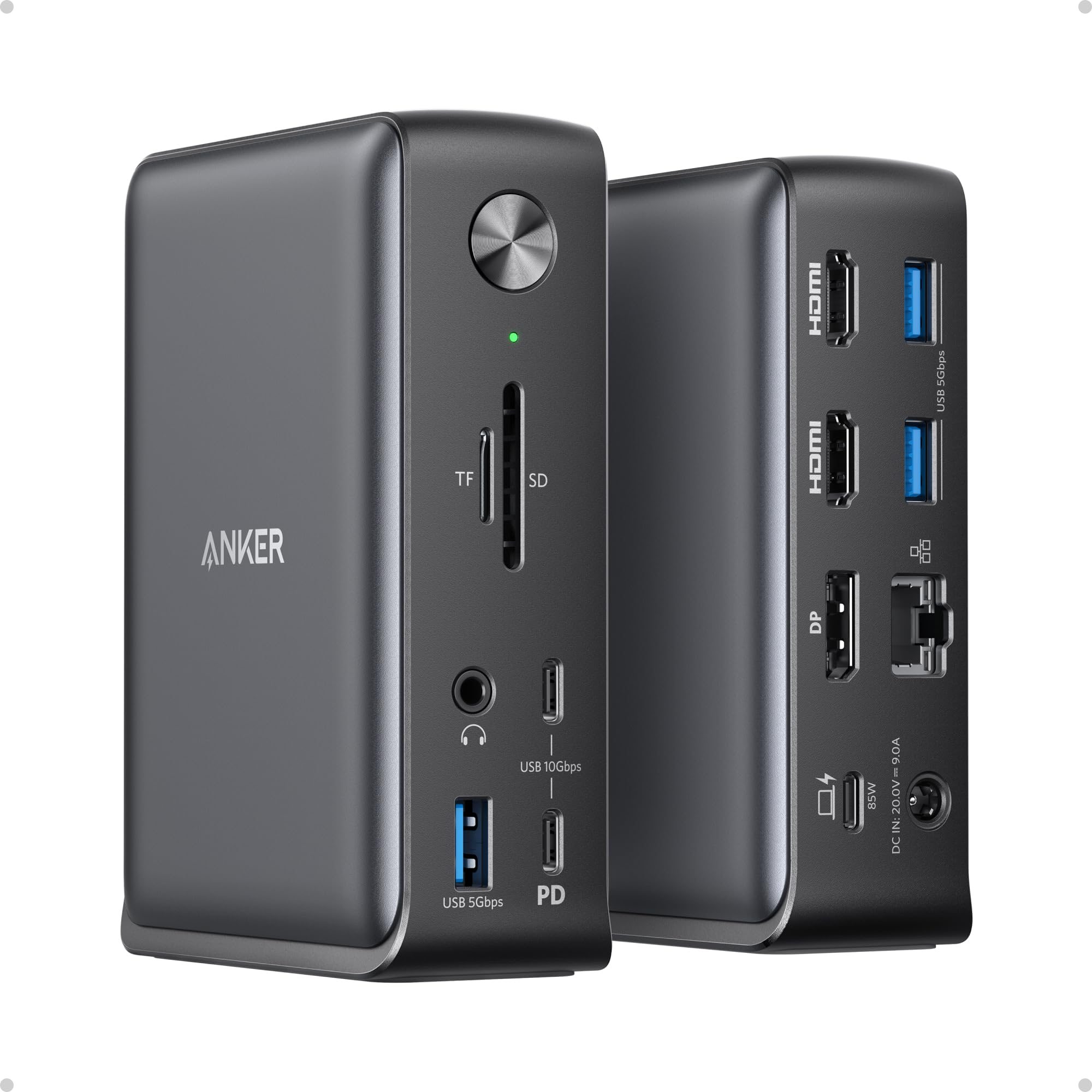
2. Check power to dock / color of power button on top of docking station.
Depending on the model of dock you use, different power cables need to be used. For Lenovo docks, the dock's power light will turn yellow as long as it's receiving sufficient power. For Anker docks, the dock's power light will be green instead when sufficiently powered. If any dock's power light is black, it is not receiving sufficient power to operate.
| Dock Model | Required Power Cable |
|---|---|
| Anker 13-in-1 | 135W barrel-tip charger (included with dock) |
| ThinkPad USB-C Hybrid | 135W slim-tip charger |
| ThinkPad Thunderbolt 3 (Gen 2) | 170W or 230W slim-tip charger; Y-splitter + 65W for second port |
There are two options for connecting power to the "engineering-spec" Thunderbolt 3 docks:
If you have a Y-Splitter cable, connect the end of your charger to this, and plug the 170W & 65W ends into their respective ports on the back of the dock.
If you do not have a Y-Splitter cable, then you'll need 2 chargers for your dock. Plug your 170W/230W charger into the "170w/230w" port, and find a 135W charger to plug into the other power port. If you don't have one, request one from your IT Technician if you need one.
Picture of Y-Splitter cable shown below, for reference: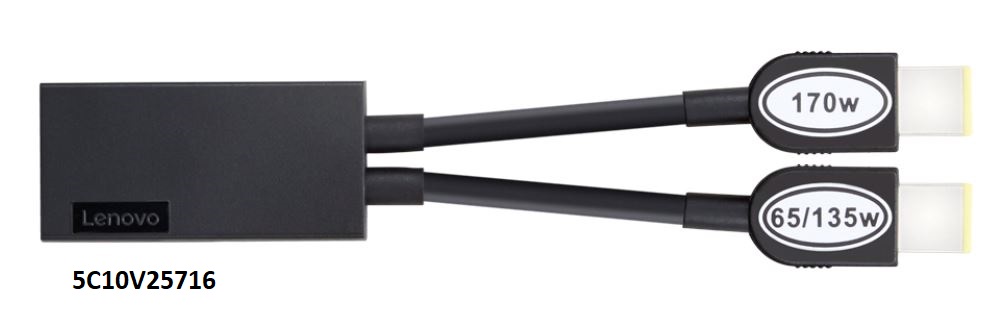
Picture of Thunderbolt Split Cable shown below, for reference:
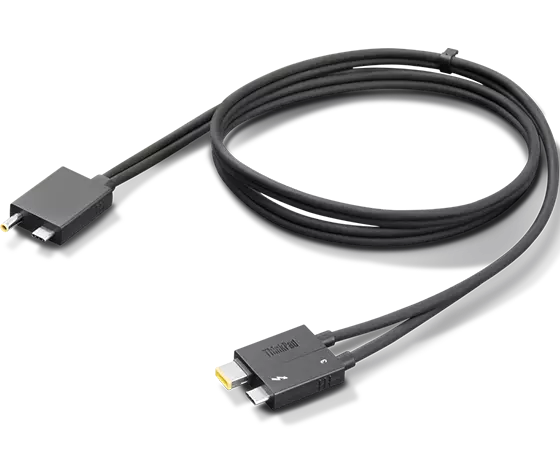
3. Check USB-C / Split Cable connection to laptop.
As long as the power light on the dock is yellow (or green, if using Anker dock), the next piece that needs to be checked is the cable that connects your computer to the dock. When you connect your computer to the dock, you should see the power light on the dock turn white (turns blue, if using Anker dock) when it detects the computer connection.
If the dock light is staying yellow/green & not turning white/blue after all power connections are confirmed to be good, the issue is likely with the USB-C cable / split cable connection to your computer. Ensure both ends of the cables are securely seated in both devices. If that's confirmed secure and the displays still aren't coming up, USB-C users may test plugging this in to another USB-C port on their laptop to test if this has any different effect.
If that fails as well, try using another cable (if you don't have another, ask your IT department for one).
4. Check HDMI/DisplayPort connections.
You'll want to make sure that the data cables (HDMI/DisplayPort) are firmly connected into both the monitors, and the dock.
If you're unable to get the monitors to show your computer's display and the cables are properly connected, try a direct HDMI connection from your laptop to each monitor to confirm each monitor works as expected. If it works, then the dock could possibly be the issue. Let your IT technician know what you find out, as any information helps them pinpoint the cause of the issue.
5. Check input selection on monitors (ensure it's set to HDMI when connected via HDMI).
Although most monitors will automatically change input whenever you connect a new display source to it, not all do. If it's set to HDMI but you're connected via DisplayPort, then your monitor will act as if nothing is plugged into it at all.
Try utilizing a button that is either underneath the center of the monitor, or under/behind the bottom right of the monitor; the button can be pushed in, left, right, up, and down to navigate through the monitor settings. If your button doesn't do that, the monitor likely has arrow buttons to navigate monitor settings instead.
6. Perform power cycle on the docking station.
To do this, you will want to perform the following steps in order:
1. Unplug the USB-C cable connecting the laptop to the docking station.
2. Disconnect all power cables from docking station.
3. Hold power button (button on top-left of dock) for ~10 seconds.
4. Once time has elapsed, let go of power button, plug power back in, and hold power button again for ~10-15 more seconds.
5. Reconnect the USB-C to the laptop, and confirm functionality.
7. Check Display Settings on computer and that 'Extend' option is used with multiple displays.
1. Using the bottom-left search bar on your Windows 11 taskbar, search "display" and click on the listing "Display Settings."
2. Once you're in Display settings, the drop-down menu right next to the "Identify" button, which is set to "Duplicate" by default, needs to be changed to "Extend desktop to this display" (see below).
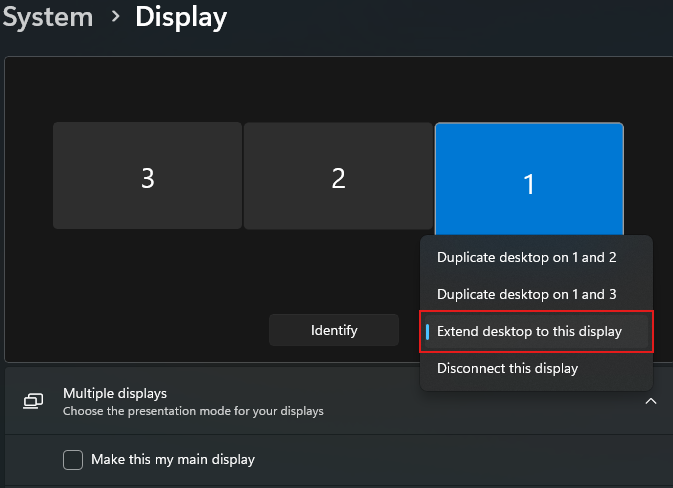
Note: You can utilize the 'Identify' button to order your monitors in the proper layout so your cursor smoothly goes from left to right across all screens just the way you want.
8. Check Lenovo Vantage & Windows updates for driver updates.
Many times there are driver updates that don't get pushed through on our system because they're not deemed as critical, but not installing these often leads to experiencing display issues such as "flickering" or even completely unresponsive monitors.
To check if there are any available updates in either of these locations:
1. Open Lenovo Vantage (accept terms and conditions if it prompts you), and click on the blue 'Check for Updates' button. If there are any, it will tell you and you'll want to go ahead and install all available updates.
2. Using the bottom-left search bar on your Windows 11 taskbar, type 'update' and click 'Check for Updates.' Scroll down and click on 'Advanced Options'. Under the 'additional options' section, click on the first listing 'Optional updates.' If there are any driver (or optional) updates to install, select all and then click the blue 'Download and Install' button.
If you're prompted to restart your computer, you'll want to restart as soon as you are able.
9. For Lenovo dock users, check that dock drivers are installed (this step does not apply to Anker dock users).
If you are still running into monitor issues, it is possible that you don't already have the proper drivers needed to work with your Lenovo Dock. Below are links to where you can retrieve the relevant firmware if needed. Ask your IT Technician if you need to do this step, and they can help you with this.
Lenovo ThinkPad USB-C Hybrid dock firmware is available for download at this link here.
Lenovo ThinkPad Thunderbolt 3 (Gen 2) Workstation dock firmware can downloaded at this link here.
If these steps do not resolve your issue, or you encounter any issues while following these directions, please contact your IT Department for more assistance.
Was this article helpful?
That’s Great!
Thank you for your feedback
Sorry! We couldn't be helpful
Thank you for your feedback
Feedback sent
We appreciate your effort and will try to fix the article