As of May 5th, 2025, Microsoft released a new update for their "Teams" application that has moved where you can access a few notable features to different locations within the app. This solutions article will detail how to view your Teams & Channels within Microsoft Teams that you previously were able to access by clicking on the "Teams" icon in the left-hand pane of the app.
To view your Teams and Channels:
1. With Microsoft Teams open, you'll want to go to the "Chat" tab along the left-hand pane of the Teams window (see below).
2. Within the "Chat" tab, underneath the list of conversations that you will have along the left-hand pane, click on "Teams and Channels ↓"

3. You should be brought to a section underneath the list of conversations where you should see the Teams/Groups that you're a part of. If you're not seeing the group(s) / team(s) that you'd expect to see, feel free to click on the "See all your teams" button. (Details of teams are hidden within the following example screenshots.)

(The familiar "Teams and channels" window you're used to seeing prior to the May '25 Teams Update.)
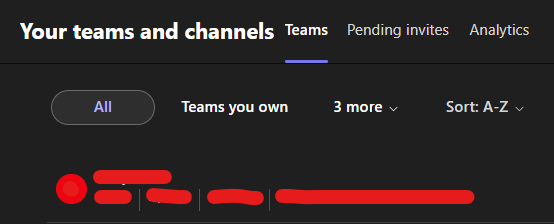 (Window you're brought to when you click "See all your teams" from the previous screenshot.)
If you are unable to locate the Teams group that you are looking for, or are otherwise running into any other issues with this task, please reach out to the IT department for assistance.
Was this article helpful?
That’s Great!
Thank you for your feedback
Sorry! We couldn't be helpful
Thank you for your feedback
Feedback sent
We appreciate your effort and will try to fix the article