To setup a shared channel calendar for all members of a team/channel inside of Microsoft Teams, this article provides a walkthrough to set this up in the way you'd need.
__________________________________________________________________________________________
Step 1: Determine where you want this shared calendar to be accessed.
The first step in getting your shared calendar properly setup is choosing where you want this to be accessible by the other members of your team. Most folks will choose to set this up under the first "General" channel for easy viewing, but you can create a shared calendar in any teams channel as long as it is not a private channel.
Step 2: Add a new channel calendar tab to the team channel.
Once you've determined where you want this to be setup, click on the + icon along the top ribbon of the team's channel, and click "Apps." In the Apps window, you'll want to choose the "Channel calendar" option. If this doesn't appear, you may need to search for it.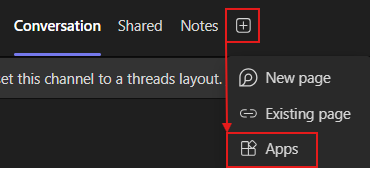
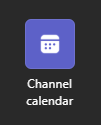
Step 3: Choose a name for your channel calendar.
After you find the "Channel calendar" app and click it, you'll be given the chance to name your channel calendar. This is what the name of the tab will be set to in the Teams channel. Once finished, go ahead and click "Set name."
Step 4: Test adding events and checking others' permissions.
At this point, a new tab will appear in your Teams channel showing this channel calendar you just created. Go ahead and test adding an event or two to the calendar using the top-right "+ Add new event" button. Once created, check that other members of the channel can see it. As long as everything looks good, check that others are able to add their events without issue. If both appear to be good, the channel calendar is properly set up and ready.
Step 5 (Optional): Adding Teams channel calendar to your calendars in Outlook.
For those that want their Teams channel calendar available in their Outlook so everything can be viewed in one location, you will need to go to the "Calendar" section of your Outlook app.
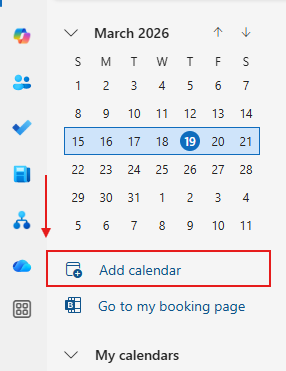
New Outlook users: From the Calendar section, first click on the "Add calendar" button beneath the top-left monthly calendar (shown in the below snippets).
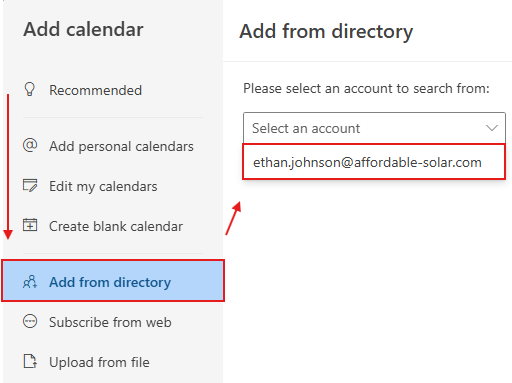
Click the "Add from directory" tab along the left-hand side, click the "Select an account" drop-down menu, and choose the email address you want to add this calendar to.
Lastly, use the "Enter a name of email address" text box to enter the address of the MS365 team or shared mailbox/calendar you want to add, click Add, and you'll see a new calendar added into your "Other calendars" section within Outlook.

Classic Outlook users: If the calendar is not already added to your "Calendar" section in Outlook once you're added as a member of the relevant team, you'll need to go the Calendar section within your Outlook app, right-click on the "My Calendars" drop-down option, and choose "Add Calendar" > "From Address Book."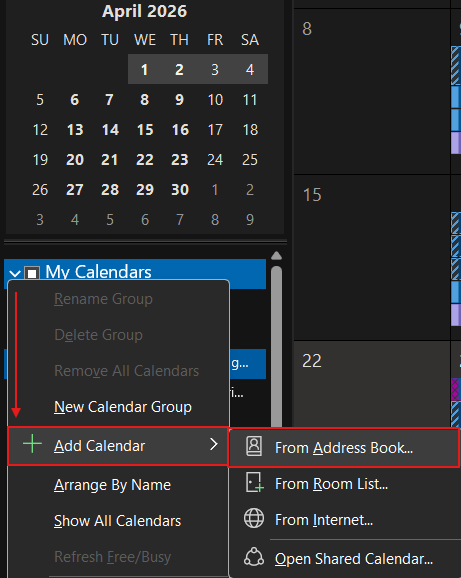
In the address book, use the top-left text box to type in the email address of the shared calendar that you want to add. Press enter, and you should see results for what you've typed. When you find the email of the team you're wanting to add, double-click that email. You'll see it's added to the text box at the bottom. You can add multiple calendars at once this way. Once finished, press "OK" and you'll see a new calendar added in the "My Calendars" section of your Outlook app.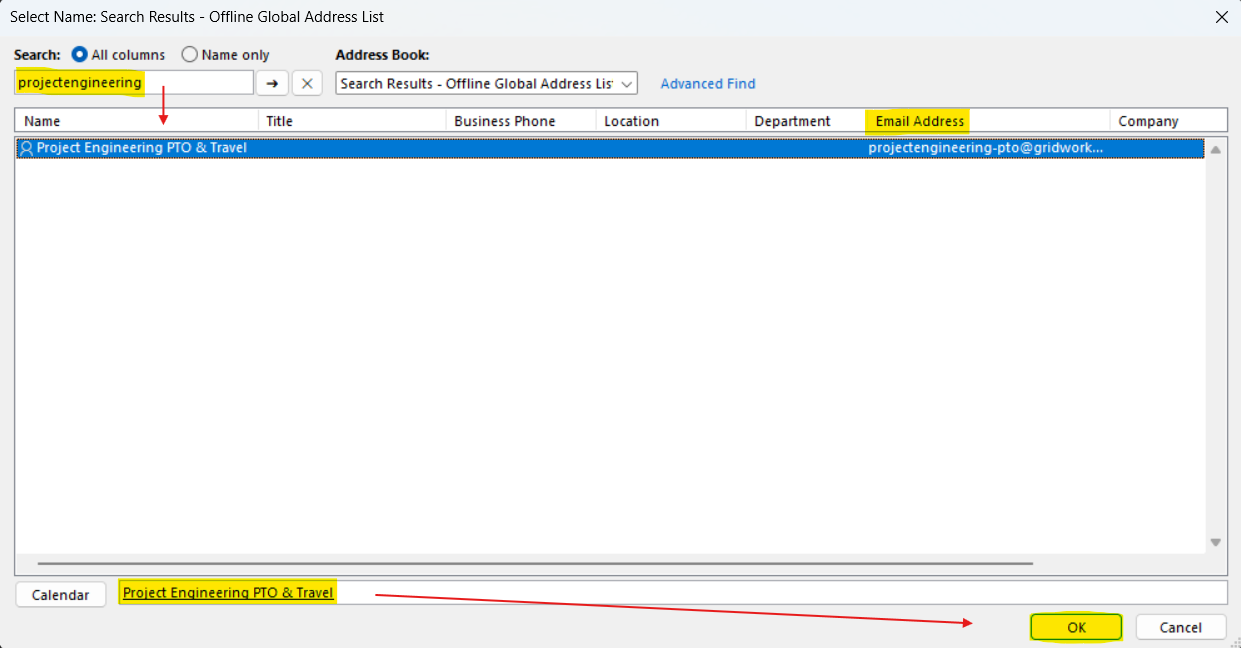
If you encounter any issues not described in this article, or if you have any other questions or concerns, reach out to the IT department for assistance.
Was this article helpful?
That’s Great!
Thank you for your feedback
Sorry! We couldn't be helpful
Thank you for your feedback
Feedback sent
We appreciate your effort and will try to fix the article