This article provides instructions on how you can create a new private or public Team within Microsoft Teams, including how to invite users both in and outside of your organization, and groups that exist within your Microsoft 365 tenant.
Note for clarity: Capitalized "Teams" refers to the application, while lowercase "team(s)" will refer to the group(s) within the application. Anything within quotations references a section within the application. Lastly, only those with an active Microsoft 365 Business license can create their own team.
1. Navigate to the "See all your teams" section within your "Teams and channels" section of the Microsoft Teams app.
- If you have separate "Chat" and "Teams" options in the left-hand pane of your Microsoft Teams app, go to "Teams," expand the "Teams and channels" drop-down menu, and click "See all your teams" at the bottom of the list.
- If you have combined "Chat" and "Teams" option in the left-hand pane of your Microsoft Teams app, go to "Chat," scroll down to the bottom of all your chat logs, expand the "Teams and channels" section and finally click "See all your teams" at the bottom of the list.
2. Begin creating a new team.
- In the top-right of the "See all your teams" section of Microsoft Teams, use the "Create team" button to begin the process.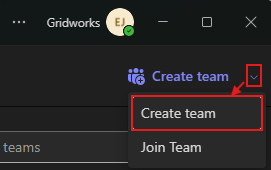
3. Set the new team's name, description, private / public type, and first channel name.
- When filled out from scratch, click "Create" at the bottom.
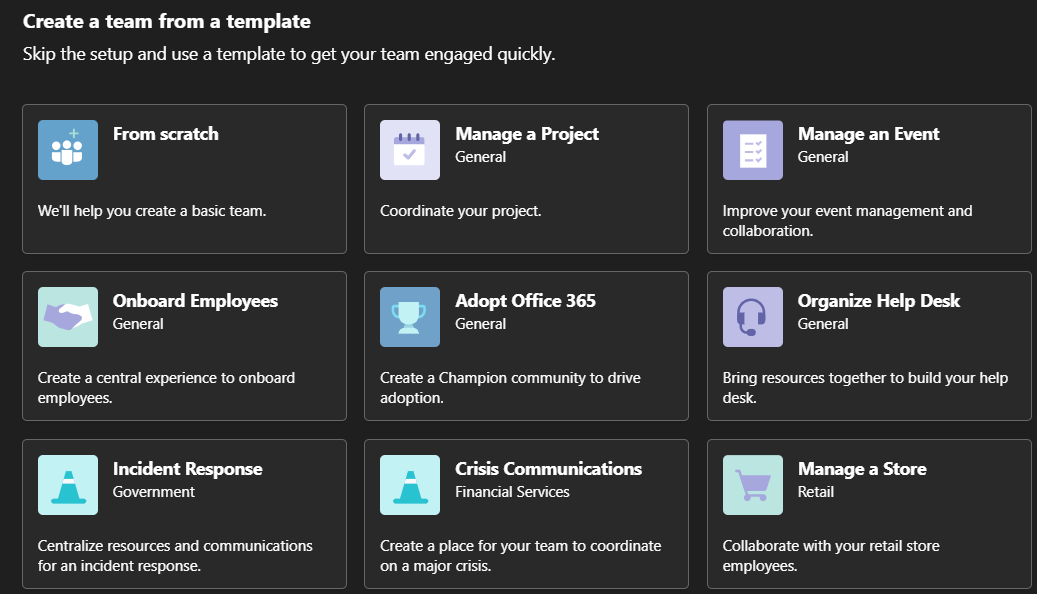
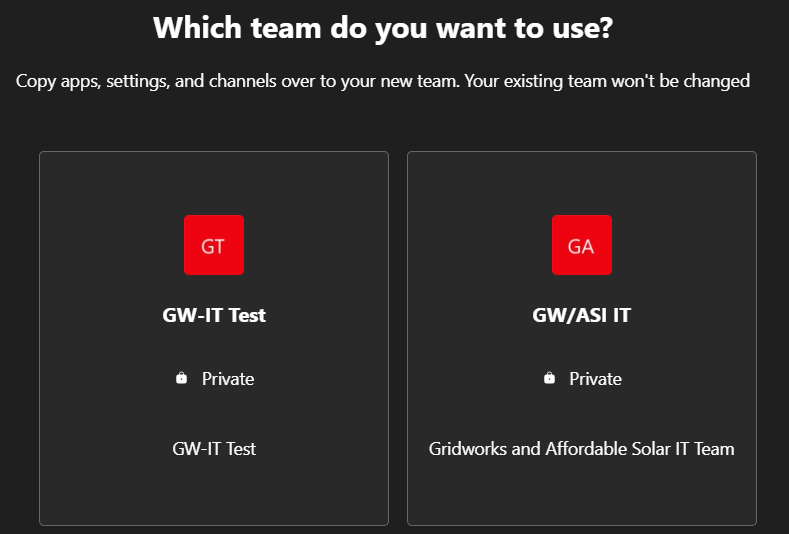
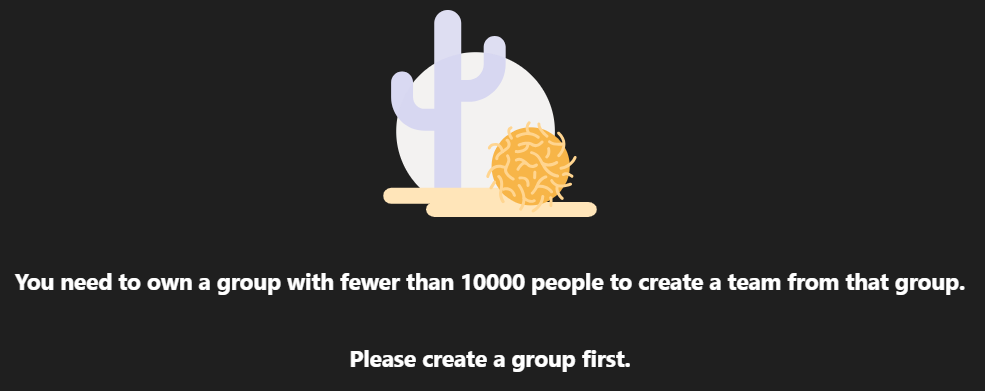
- For those wanting to create a team based on a template, another existing group in Microsoft 365 (requires you to be owner of the group), or copy apps/settings/channels from another existing team, they can use the "More create team options" link in the screenshot below.
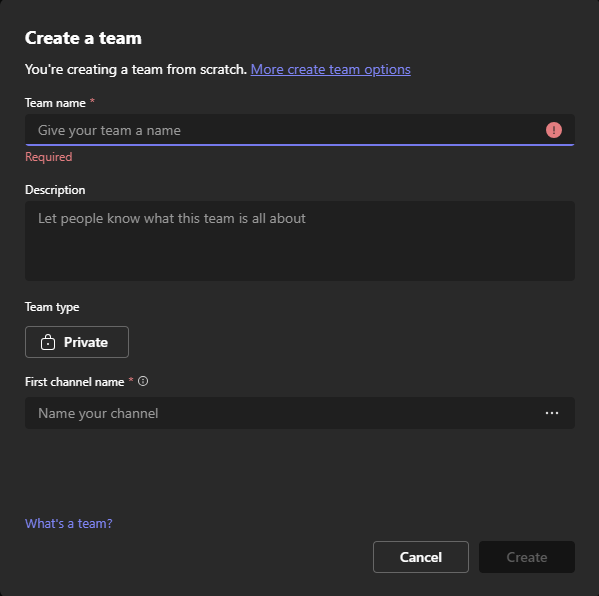
Showcase of the "More create team options," where new teams can be created from templates, Microsoft 365 groups, and other existing teams.
4. Add members to your new team.
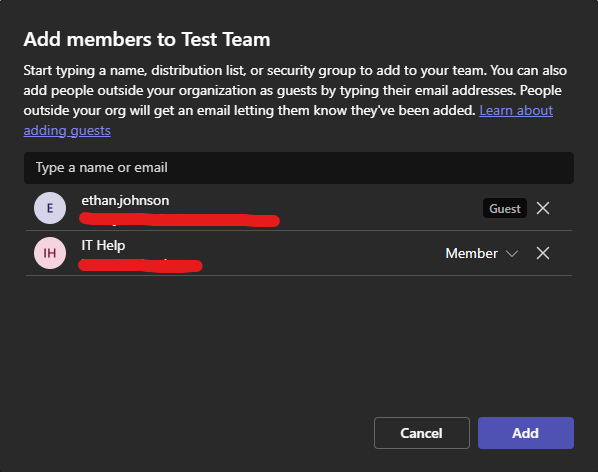
- On the next screen, enter the emails of all people you wish to add to your team. You will be able to add people outside of your organization, and external members will be labeled with a "Guest" tag within the team. External users will not be able to be set as members nor owners of the team.
All individuals added will receive email invitations to the team coming from Microsoft Teams (shown in next sub-section). Once done, click "Add."
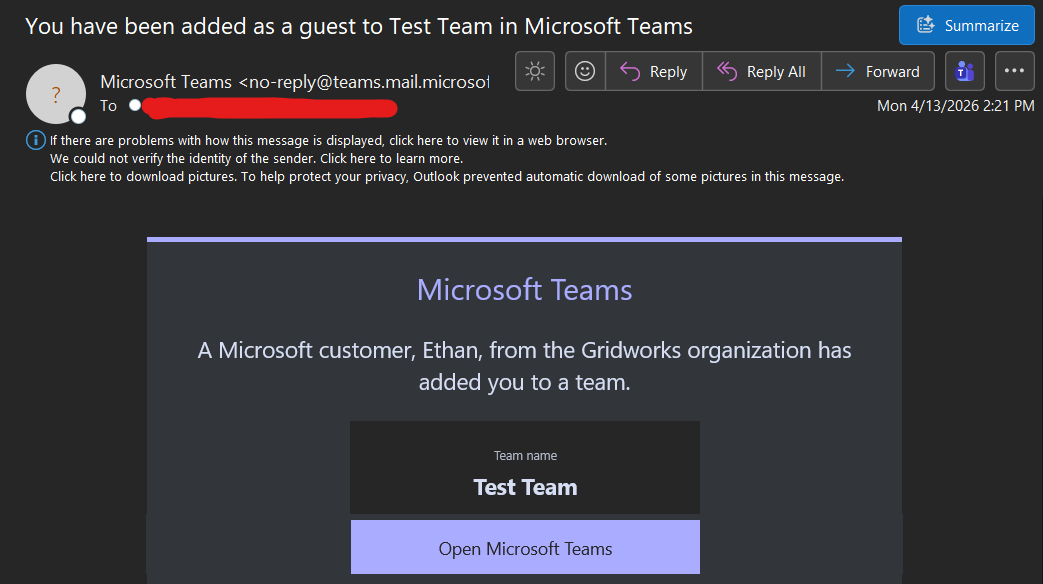
Recipients of these email invitations will receive the following "You have been added as a [guest/member] to <team> in Microsoft Teams" email. They will need to use the "Open Microsoft Teams" link to be taken to this team they've been invited to.
5. Customize your team & channel in the best way to collaborate on shared tasks.
- At this point, you can set up the team in whatever manner is best for the team's needs. Shared calendars, links to specific documents you want all members to see, and other information can all be configured in the tabs within the channels of the team. Both solutions articles and Microsoft articles exist to provide direction on how to set up these other features.
Teams and channels can each be modified by using the ellipses (. . .) that is revealed when you hover over the team/channel in your list, where you can configure settings such as additional members of the team, member permissions & guest permissions, who can post in a channel, and many other options.
If you encounter any issues following these steps, or have any questions that aren't addressed in these directions, please submit a ticket to ITHelp@gridworks.com for assistance.
Was this article helpful?
That’s Great!
Thank you for your feedback
Sorry! We couldn't be helpful
Thank you for your feedback
Feedback sent
We appreciate your effort and will try to fix the article