This article contains instructions on how to add shared mailboxes and shared calendars to your Outlook client. This is required for Outlook on the web (a.k.a "Webmail") & new Outlook users. Although shared mailboxes are automatically added to users' Outlook clients if they use Outlook Classic, shared calendars must still be added manually.
The following steps apply to both Outlook on the web and the standalone (new) Outlook application (its app icon is displayed below for clarification purposes).
Adding a Shared Mailbox
Outlook O.W.A (a.k.a Webmail) & New Outlook users:
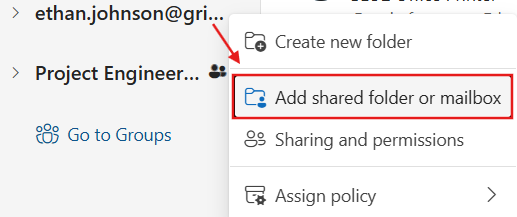
1. In the Mail section of your Outlook client, hover over your inbox's email address, click the ellipses that is revealed, and click "Add shared mailbox or calendar."

2. In the window that populates, enter in the email address of the shared mailbox that you want to add to your list of inboxes, then click "Continue" at the bottom of this window. Once done, you should see a new mailbox beneath all other mailboxes (may need a few minutes for all of the mailbox's contents to appear while Outlook imports it).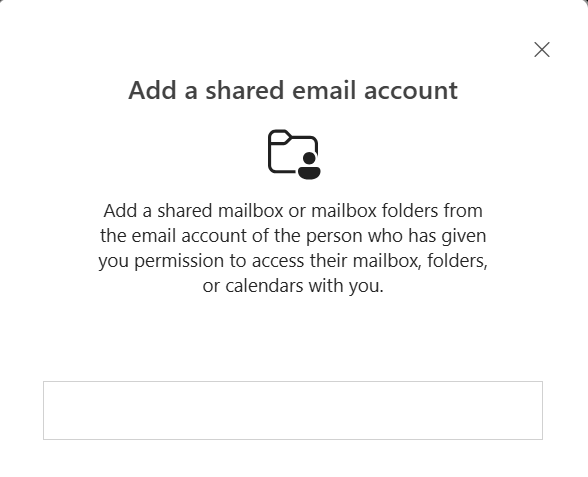
Adding a Shared Calendar:
Classic Outlook users:
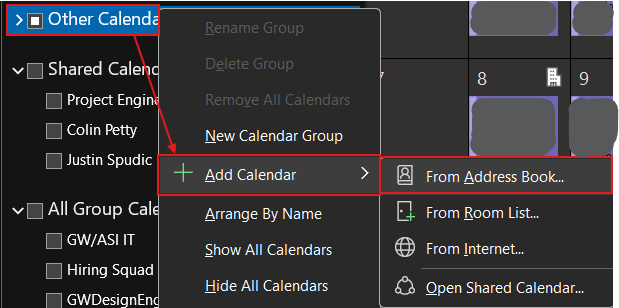
1. Go to the Calendar section of your Outlook client, right-click the "Other Calendars" drop-down menu, and choose "Add Calendar" > "From Address Book..."
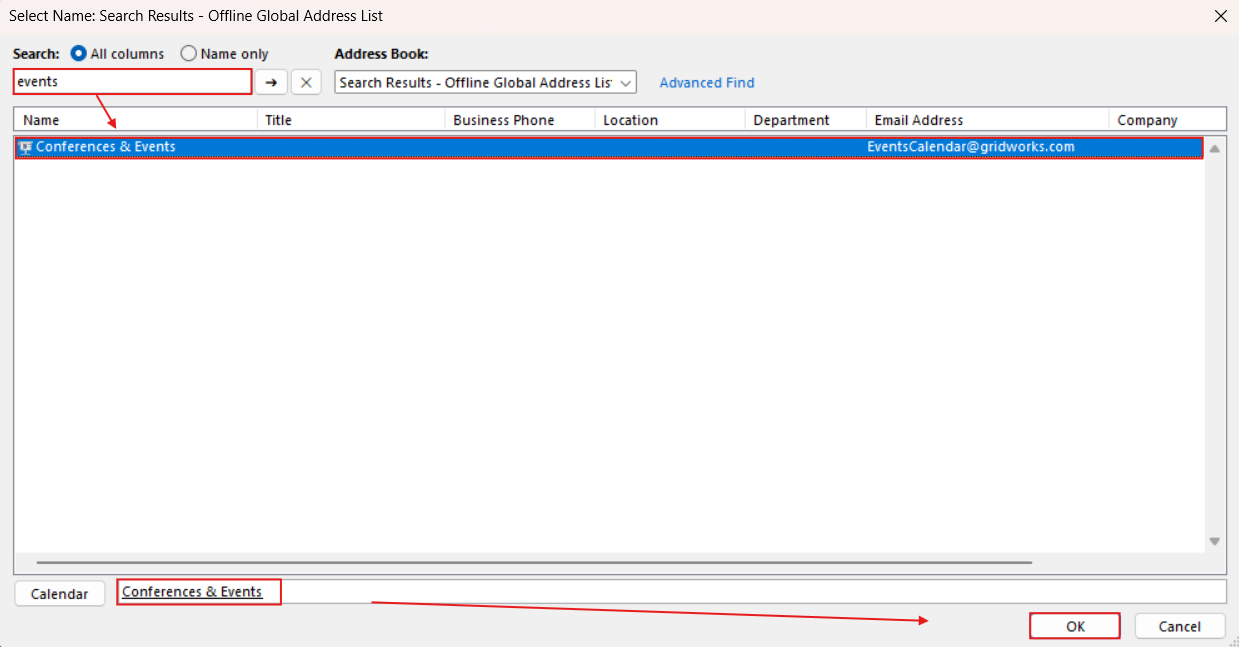
2. In the top-left text box, type the name or email address of the calendar you want to add, and press enter. In the results shown in the central pane, double-click on the calendar you want to add, and it's name will be added to the text box at the bottom. You can add more than one calendar at a time this way.
Once all calendars have been selected, click OK. You'll see these new calendars added in the "Other Calendars" category within the Calendar section of Outlook.
Outlook O.W.A (a.k.a Webmail) & New Outlook users:
1. Go to the Calendar section of your Outlook client, and click the "Add Calendar" button below your calendar in the left-hand pane.

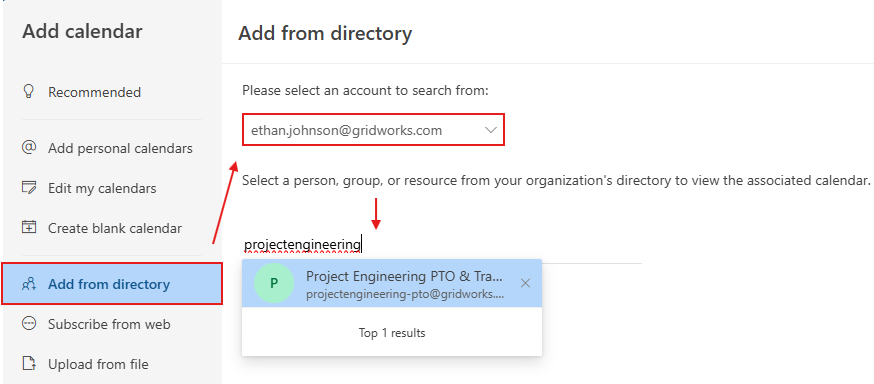
2. In the "Add Calendar" window, choose the "Add from directory" tab along the left-hand pane, select your company email that you want to add this calendar to, type in the email address of the shared calendar that you want to add, and lastly click "Add" once you've selected all of the calendars you wish to add (see below).
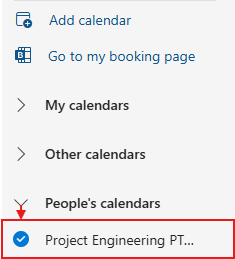
3. Once Outlook states this calendar has been added, it is added to the "People's calendars" section. You can move this to a different drop-down section such as "My calendars" or "Other calendars" if you wish by dragging the highlighted calendar entry to another section.
If you encounter any difficulties or issues while following these directions, please reach out to IT for assistance.
Was this article helpful?
That’s Great!
Thank you for your feedback
Sorry! We couldn't be helpful
Thank you for your feedback
Feedback sent
We appreciate your effort and will try to fix the article